Translate using the Rigi online editor
Rigi online editor is a WYSIWYG (what you see is what you get) tool that offers an online in-context translation environment.
Translators see a preview of the user interface texts.
Translated strings are instantly displayed on the previews.
The system offers translation suggestions for similar source texts.
The Rigi online editor has a number of useful features. For details, see the Translation suggestions section below and the Use the 'Find and replace' feature guide.
After you get an email invitation from a project manager, perform the following steps:
Open the email and click the link to sign up or log in to the Rigi online editor. For details, see the Sign up to Rigi and Log in to Rigi guides.

If you are already logged in to the Rigi online editor, click the Open the translation task link in the email instead.
After you log in, you will be directed to the My translation task module in the online editor.

Click the translation language or the
 icon to open the translation task. The online editor page will be displayed in the current browser tab. Rigi Viewer will be displayed in a new browser tab.
To find out more about the Rigi Viewer, see the Rigi Viewer section.
For maximum convenience, open the Rigi Viewer and online editor on two monitors. Alternatively, open them in two separate windows and place them side by side, or use Google Chrome's 'Split view' feature.

Go to the Rigi Viewer and make sure it displays the Context mode.

(Optional) In the online editor, adapt the filter to only see the specific strings, for example, those with the Untranslated status.

In the online editor, select a text string. In Rigi Viewer, a corresponding text will be highlighted on a preview, or another preview containing the string in question will be displayed.
Depending on the Rigi settings, complex ICU strings can sometimes be displayed in an ICU editor popup. For details, see the ICU editor section below.

Alternatively, you can right-click on a string in the preview in Rigi Viewer. The corresponding string will then be selected in the online editor.
Enter the translation in the online editor. The corresponding string in Rigi Viewer will instantly reflect the translation.

Click the
 icon to mark this string as Translated.
To change the string status, click the
 icon and select the required status.
When you have translated all the required strings, mark this task as completed:
Close the online editor by clicking the
 icon in the top right-hand corner.
Hover over the finished task and click the
 icon.
icon.
Rigi online editor has a set of hotkeys used for quick translation editing. To check the hot keys, hover over the  icon in the top right-hand corner of the online editor.

ICU editor is a popup displayed automatically for complex strings containing ICU syntax with specific grammatical forms related to number, gender, quantity, etc.
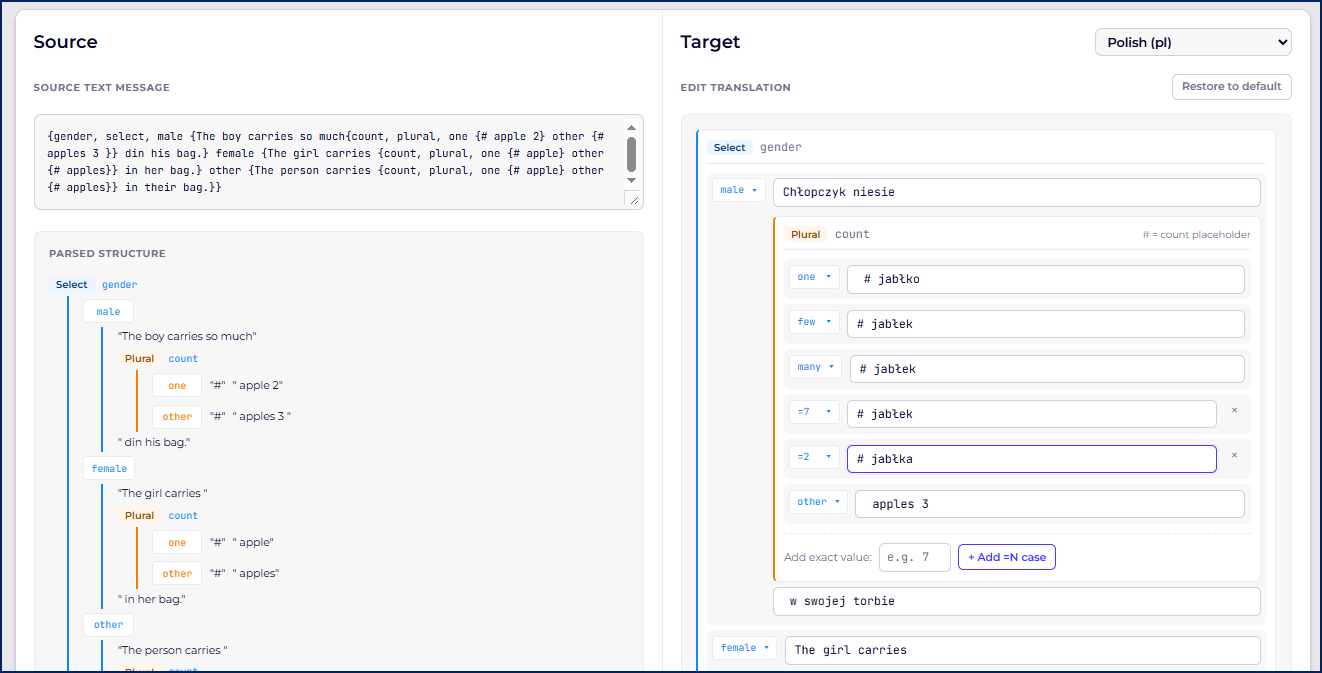
In the Source section on the left, you can view the source text structure.
In the Target section on the right, you can do the following:
Enter translations for specific grammatical forms.
Add another number form by entering a number in the Add exact value field and clicking the +Add =N case button.
Overwrite the text in the Target section with the source text by clicking the Restore to default button in the top right-hand corner.
In the Output section at the bottom of the editor, you can check the target texts in the Preview field and the target string in the Result field.
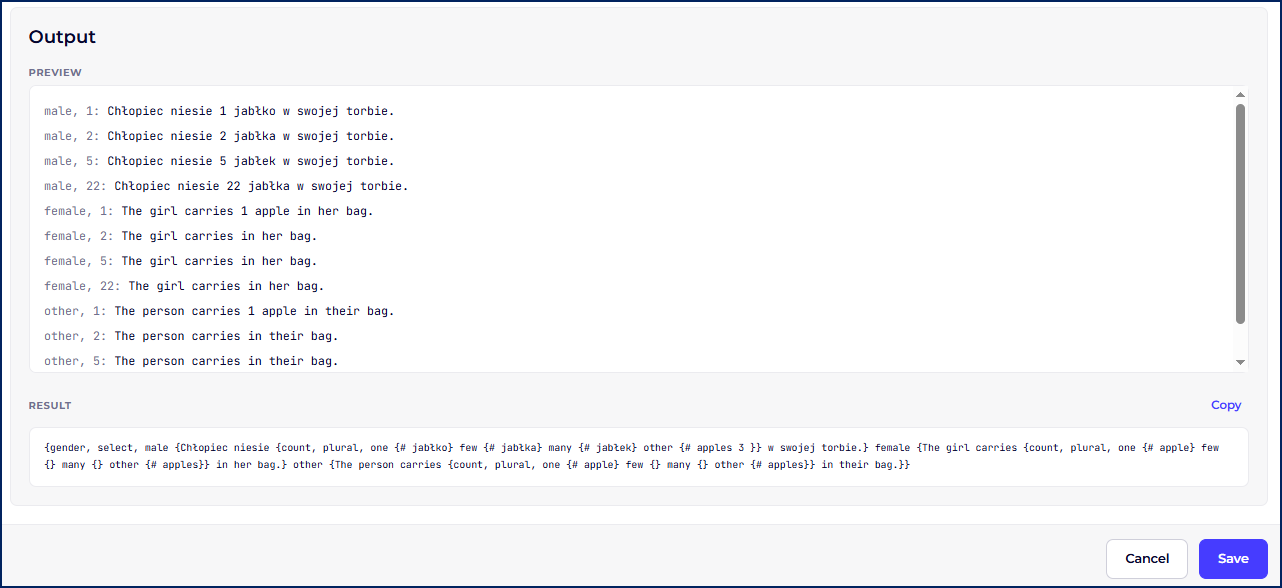
To save the translation and close the editor, click the Save button in the bottom right-hand corner of the popup.
To reopen the editor, click the  icon above the target string.
Displaying ICU strings in the Rigi Viewer
When you select an ICU string in the Rigi editor, its correct target variant is displayed in the HTML preview.
When you save the changes in the ICU editor, the string in the preview is updated.
The editor displays suggestions for translated strings with a similar source text. Translations can have various sources:
Translations from this project.
Translations from other projects.
Translation Memory (TM).
Machine translation engine (MT).
The suggestions are displayed at the bottom of the online editor in the Matches tab.

To use a suggestion, hover over it and click:
the
 icon to insert the suggestion into the translation field.
the
 icon to copy the suggestion to the clipboard.
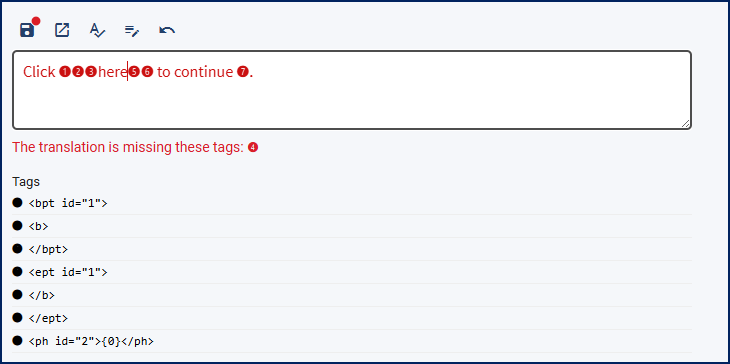
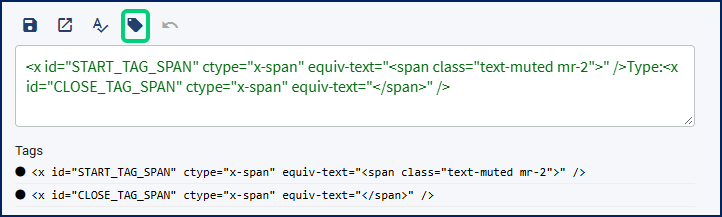
Sometimes, source texts include tags that are displayed as numbered badges in the source and target texts. This approach enables you to only focus on the translatable texts.
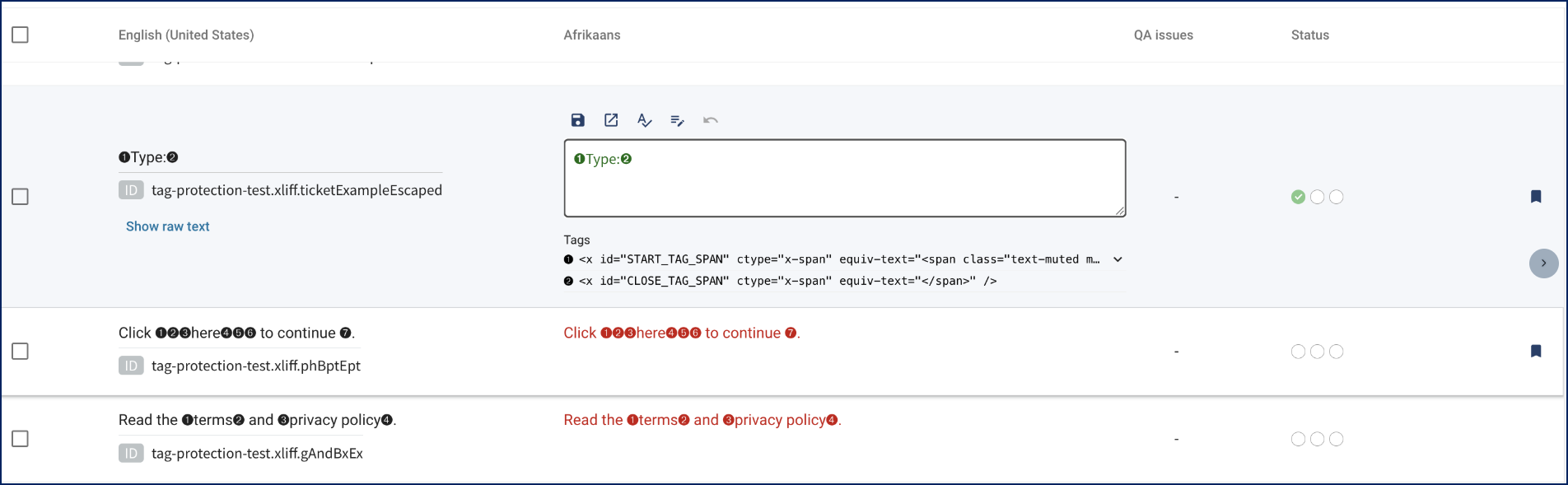
Original tags are displayed below the target text fields.
To switch to the raw text view, click the 'Edit raw text'  icon above the text field.

To switch back to the numbered badges view, click the 'Recognize tags'  icon.
icon.
If you accidentally delete a tag badge or edit a tag, a warning message will be displayed