Rigi TMS Connector for XTM
Important
To use the TMS Connector, you must have an XTM Cloud 'Administrator' user account with API access rights. For details, see the XTM Cloud documentation.
The Rigi TMS Connector links a Rigi project to an XTM Cloud project. It automatically updates the XTM Cloud project with new or edited resource files whenever the source text changes and the string list in Rigi is updated. This solution is especially useful for continuous projects.
XTM Cloud projects with file-joining setting selected are not supported in this integration.
We recommend using the Rigi CLI tool to update your Rigi project with new strings. For details, see the Rigi CLI tool section.
To link a Rigi project with an XTM Cloud project using the Rigi TMS Connector, perform the following steps:
In XTM Cloud, perform the following steps:
Create a new project with the following settings (for details about project creation, see the XTM Cloud documentation):
A source language.
The source language in an XTM Cloud project does not have to match the source language in the linked Rigi project. When the TMS Connector imports the XLIFF file from Rigi into XTM Cloud, the source language selected in the XTM Cloud project is automatically assigned to the texts. When the file is reimported to Rigi, the original source language from the Rigi project will be reassigned to the source strings.
The required target languages.
You can also add target languages later.
In the Filter template dropdown, select Rigi.
Rigi filter template
If the Rigi template is not available in the XTM Cloud, please contact XTM Support and ask to set up this template on your account.
Important
Do not add any files for translation to an XTM Cloud project!
Copy the newly created project's ID.
On your Rigi server, perform the following steps:
Open the project you want to link with an XTM Cloud project.
In the project menu on the right, select Settings > TMS Connection.

From the Configure Translation Management System dropdown menu, select XTM Cloud. The XTM Connection Settings section will be displayed.

In the API URL field, enter the URL of your XTM Cloud instance, e.g.,
https://YOURINSTANCE.xtm.cloud/.Enter your Company Name.
Enter the XTM Cloud instance credentials for a user with API access rights: Username and Password.
Enter the XTM Cloud project ID you have copied in step 2.b.
Click the Connect to XTM button. Additional sections will be displayed below.
In the Synchronization Settings section, perform the following steps:

Using the Automatic updates toggle, specify whether you want to update the linked XTM Cloud project automatically or manually.
Using the Clear machine-translated strings toggle, specify whether you want to remove machine translations before uploading strings to XTM Cloud.
Select which strings should be sent to the XTM Cloud project: all strings or only the untranslated ones.
Select when the translated strings are to be imported from the XTM Cloud project: after each workflow step is completed or when the whole workflow has been finished.
Select the status that will be assigned to strings uploaded from XTM Cloud to the Rigi project. If you import strings after each workflow step, you can set a specific Rigi status for XTM Cloud steps.
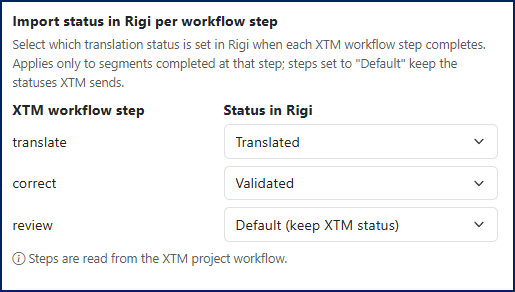
Default status
If you keep the Default option, the status of the strings will be determined by their status in the XTM Cloud project.
In the Scheduled Updates section, use the Schedule automatic updates toggle to specify whether you want to automatically send strings to XTM Cloud on a recurring schedule. If you switch the toggle on, select the required update frequency, day(s), and time.

In the Language Mapping section, review the mapping statuses:

Mapping statuses
The source language will get the Source status. This language pair cannot be edited.
If the TMS Connector has mapped a target language from the Rigi project to an XTM Cloud language, it will have the Auto Mapped status. You can change the XTM Cloud language by selecting another option from the XTM Language dropdown.
If the TMS Connector could not map a target language, its status will be Not Mapped. You can assign the correct XTM Cloud language by selecting it from the XTM Language dropdown.
Manual language selection
If you have selected the XTM Language manually, you will be asked to check and confirm the language changes in a popup after you click the Establish connection button.

Click the Save button. The status of the correctly mapped languages will change to Pending. At this point, mapping statuses are saved in the TMS Connector, but no files have been sent to the XTM Cloud yet.
(Optional) To manually send strings to the linked XTM Cloud project, click the Send Strings to XTM button below.
Now, if you have switched on the Automatic updates toggle, whenever the source strings in Rigi change, the TMS Connector will upload Rigi XLIFF files to the linked XTM Cloud project. In it, the regular translation process can then be started.
Important
After establishing the connection, the connector will automatically create a webhook from RIGI to the connector. This webhook will be visible in the webhook user interface in Rigi (for details, see Project settings – Webhooks). Please do not delete this webhook, as it is essential for seamless file integration.
After the connector uploads the Rigi XLIFF files to the XTM Cloud project, the status of the properly mapped languages will change to Established.
If files were sent to the XTM Cloud but the mapping is not saved for some reason, the mapping status will be Desynchronized.
If you change the established mapping for a language pair, its mapping status will be Modified.
After the workflow for a specific language combination is completed in XTM Cloud, the updated XLIFF file for this combination will be uploaded back to the Rigi project.
Delete the connection
To delete the established connection and all the related settings, click the Delete button in the Danger zone section at the bottom of the TMS Connection display. This action cannot be undone.

Important
You can only add webhooks after uploading strings to the XTM Cloud project.
The TMS Connector enables you to call webhooks based on the integration event (the import of XTM Cloud translations into Rigi). To add a new webhook, perform the following steps:
The option selected in the Import strings from XTM dropdown in the Synchronization settings section also determines when a webhook is called.
In the Webhooks Configurations section, click the + Add Webhook button. The Add Webhook Configuration popup will be displayed.

Enter the Webhook URL. You can add the following variables if required:
$xtm_localefor XTM Cloud language code.$rigi_localefor Rigi language code.$xtm_project_idfor XTM Cloud project ID.$rigi_project_idfor Rigi project ID.
Select the required HTTP Method: POST or GET.
(Optional) Add the API key for the POST method by clicking the Add API Key button and entering the key. The API key will be used as a bearer token in the authorization header in the REST request.
In the Workflow Steps section, select the steps after which the webhook will be called. The list of available options is defined by the XTM Cloud workflow.
Click the Save Webhook button.