Translate in Trados Studio
The Rigi plugin for RWS Trados enables in-context localization of dynamic software applications.
Trados integration key features
Translate in context (WYSIWYG). Selecting a text in the Trados Studio editor automatically loads a preview and highlights the selected text. Conversely, selecting a text in the preview will select the corresponding segment in your Trados Studio editor.
Process review comments from language testers. Selecting a comment from a language tester displays a preview containing the corresponding text highlighted. It will also select the segment in your Trados Studio editor to which you can copy the suggested translation.
Install the Rigi plugin for Trados Studio. For details, see the Install the Rigi plugin for Trados Studio guide.
Open the Rigi XLIFF file in Trados Studio. You should now see a Rigi menu on the ribbon.

Each string in the list contains a reference to the corresponding UI text.

You can also open multiple Rigi documents at once.

(Optional) Change how the previews are displayed.
Display previews in Chrome vs Rigi Viewer for Windows
By default, the Rigi plugin for RWS Trados displays previews in Rigi Viewer in a new browser window and does not require installing Rigi Viewer for Windows. This solution is a safer, faster, and more stable option. However, if you cannot use Chrome for some reason, you can switch to displaying previews in Rigi Viewer for Windows.
In the Rigi menu on the ribbon, click the About Rigi button. The About the Rigi plugin popup is displayed.
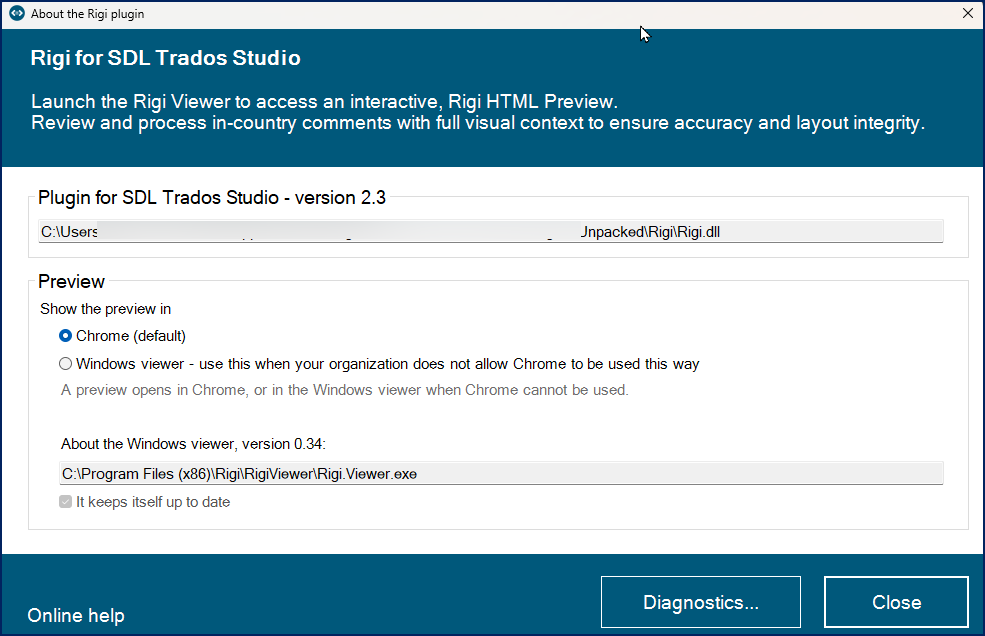
In the Preview section, select the required option.
If you selected the Windows viewer option, the Download button is displayed below. Click it and install the Rigi Viewer for Windows. For details, see Rigi Viewer for Windows.
In the Rigi menu on the ribbon, click the Preview button.

Rigi Viewer or Rigi Viewer for Windows will be displayed on the right-hand side.

You can now edit in context. For more information about using Rigi Viewer, see Rigi Viewer and Rigi Viewer for Windows.
Cannot see previews?
Verify with your project manager that you are assigned as an external translator for this language.
Note that Trados will add a region code if it is not specified in Rigi. For example, ja (Japanese) will be converted to ja-JP (Japanese for Japan).
Upload translations
For regular Trados Studio projects, you return the Studio package to the project manager.
In Rigi, your project manager can enable the direct upload of the translations to the Rigi server. To upload translations to Rigi, perform the following steps:
In the Rigi menu on the ribbon, click the Upload for Review button.

An Upload translations for review popup will be displayed.

Click the OK button.
Authenticate yourself as described in the Authenticate from a third-party desktop tool guide.