IV. Review snapshots
After a snapshot has been captured or added, a thumbnail is displayed in the Previews panel on the left, the preview is displayed in the central panel, and the scanning results are displayed in the Scan Results panel on the right.
By default, the Scan Results panel displays the Translatable text section. It contains all the texts that can be linked to strings in your Rigi project. The translatable texts are marked in the preview with green frames. The text selected in the Scan Results panel is marked with a blue frame.

If a text is marked as translatable but cannot be matched with the Rigi strings, it will be displayed in the Undetermined translatable section. Each entry in this section contains information about the issue that occurred.
For details on how to match texts with Rigi strings manually, see the Link texts to Rigi strings manually section below.
The undetermined translatable texts are marked with orange frames in the preview.

Hover over a text to highlight it in the preview.
Snapshot preview options
The preview toolbar located in the central panel below the snapshots offers the following options, from left to right:

Zooming options.
'Fit to window' button to scale the snapshot to fit the central panel.
'Actual size' button to display the snapshot at 100% size.
Border toggle to display or hide the text borders in the 'Preview' layer.
Review the texts in the Scan results panel, and, if necessary, adjust translatable text properties.
Keyboard shortcuts
To move through previews and strings without the mouse, use the following keys:
Up / Downto move within the active list (previews or the strings list).Right / Enterto switch from previews into the strings list, or open the Label Properties popup for a selected string.Left to switch from the strings list back to previews.
Esc / Left to close the Label Properties popup.
Important
You can only edit text properties for the most recently captured preview, the one that is currently displayed in the Rigi Snapshot app. After another preview is captured, it is no longer possible to edit the text properties in the previous preview.
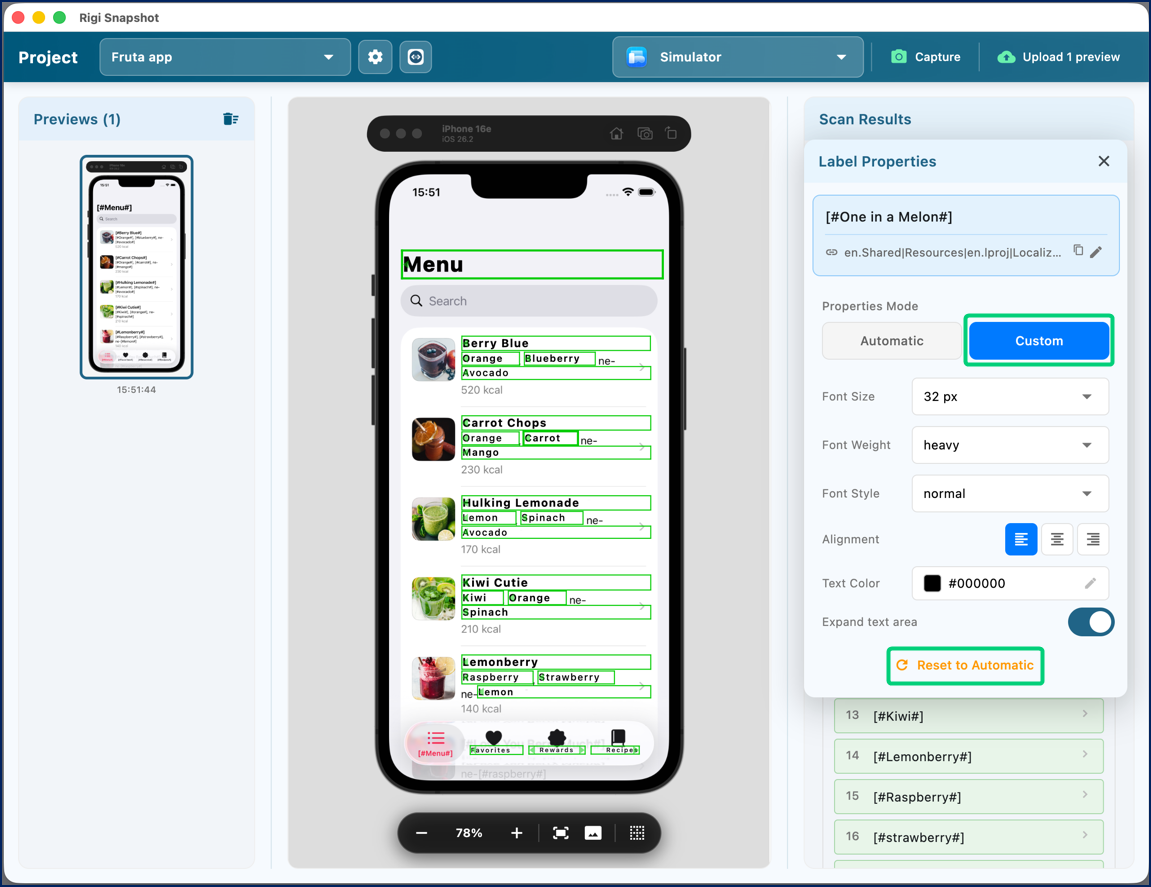
To create functional HTML previews, the Rigi Snapshot app automatically determines the font size, weight, style, color, and alignment for each defined text. To change these details, select the required text in the Translatable text list, then select the Custom option.
Important
If you change the style of a specific text, this style will apply every time that text occurs in current or future snapshots.
To restore the automatically-defined settings, click the Reset to Automatic button at the bottom of the text properties section.
When automatic matching picks the wrong string or cannot decide between two, you can pick the correct Rigi string by hand.
Manual selection always overrides automatic matching.
Select the wrongly matched or unmatched text in the Scan Results panel.
In the Label Properties popup, click the 'Link a string'
 or 'Change linked string'
  icon. The Link RIGI string popup will be displayed.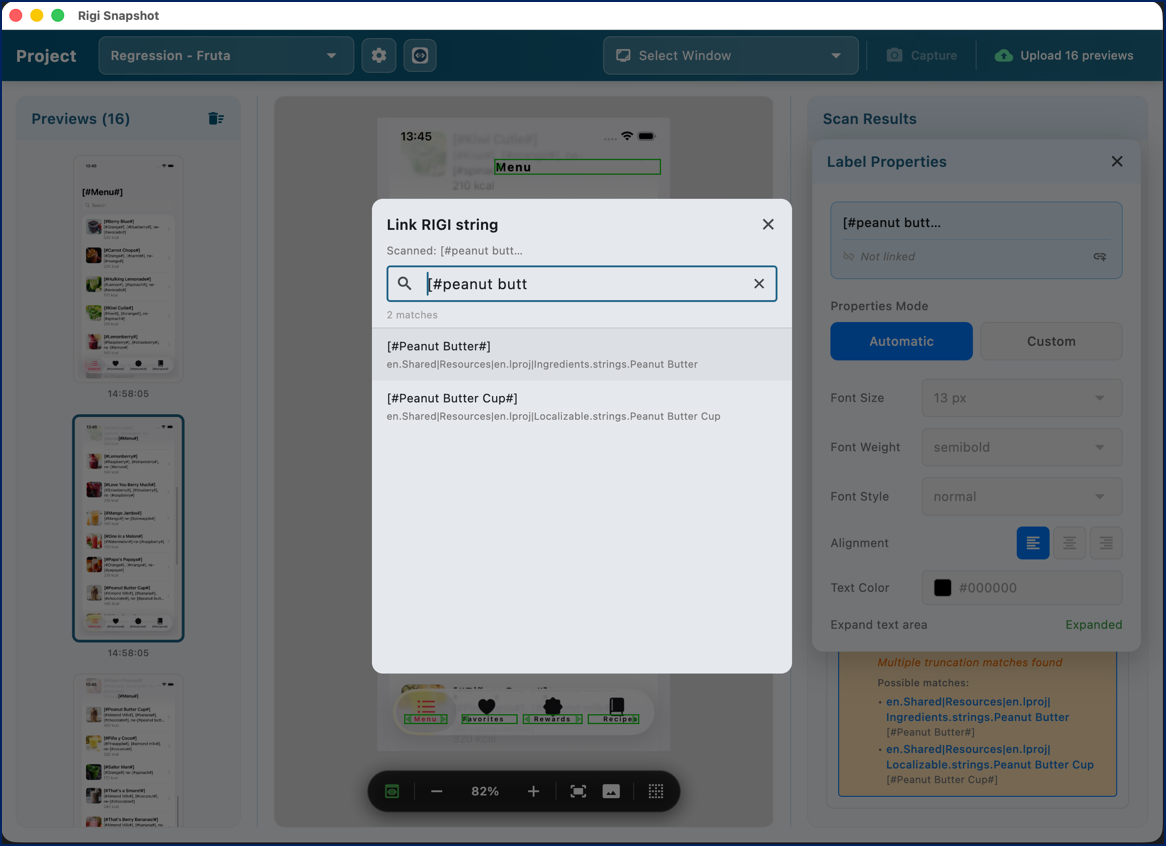
Select the correct string.
The manually linked text will be marked with the manual tag in the Scan Results panel and the Label Properties popup.
To go back to automatic matching, click the 'Remove manual link'  icon in the Label Properties popup.