II. Prepare your application
Important
To use the Rigi Snapshot app, your Rigi project must have the Other (OCR) application platform selected. You can select the application platform during project creation (for details, see Create a project) or in the project settings (for details, see Project settings – General).

To permit the Rigi Snapshot app to identify the translatable texts in your application, every translatable string must be delimited by special characters:
«...»(work for both Windows and macOS).Alternatively, you can select OS-specific characters:
[# #]for macOS or{{ ... }}for Windows.Auto-detected delimiters from your
strings.jsonfile.Custom delimiters.
Standard delimiters for macOS and Windows can be added automatically in a Rigi project. To do so, perform the following steps:
Upload the source files to your Rigi project.
In the Rigi project menu, select Settings > Context > String recognition.
(Optional) In the Rigi Token format dropdown, you can select OS-specific version: OCR on Windows: {{...}} or OCR on macOS: [#...#].
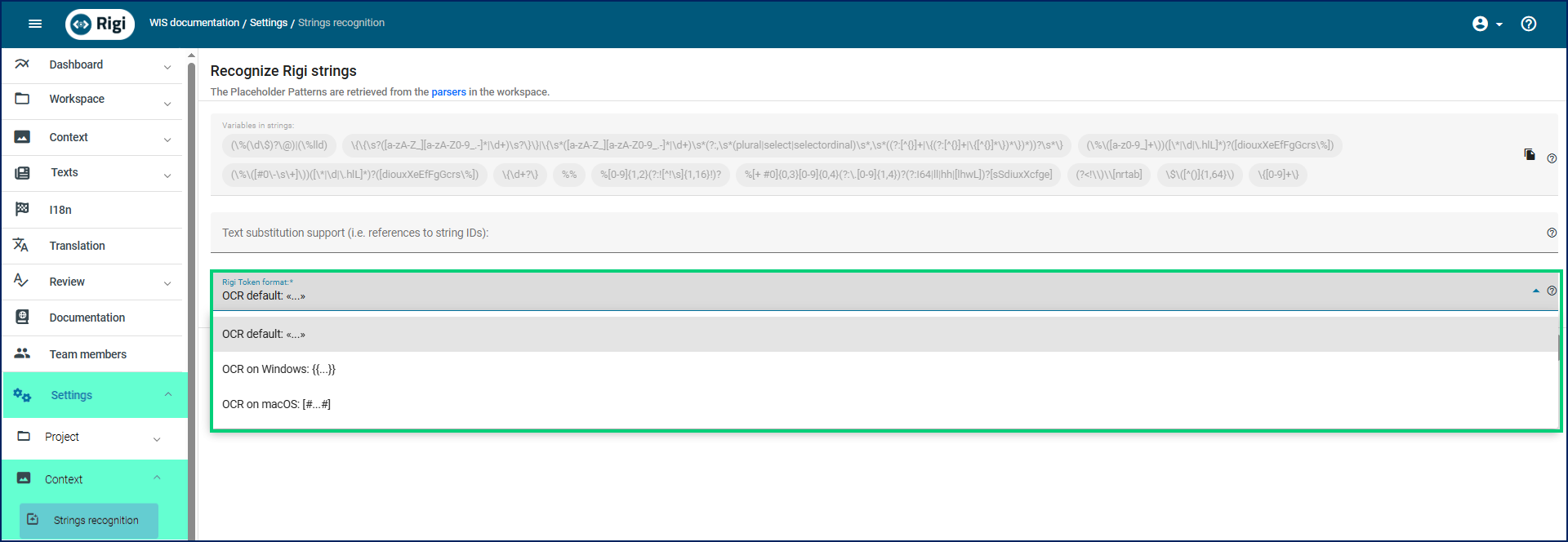
Click the Save button.
In the Rigi project menu, select Workspace > Files.
Click the Download files button at the top of the Files display.

In the Download files popup, select the Files with Rigi tokens checkbox.
Click the Next, then the Download button.
Upload the downloaded files to your application so the Rigi pseudo-language can be selected there.