Strings in context
To display an overview of all source strings from all workspace files, select Context > Texts or Texts > String list in the project menu.
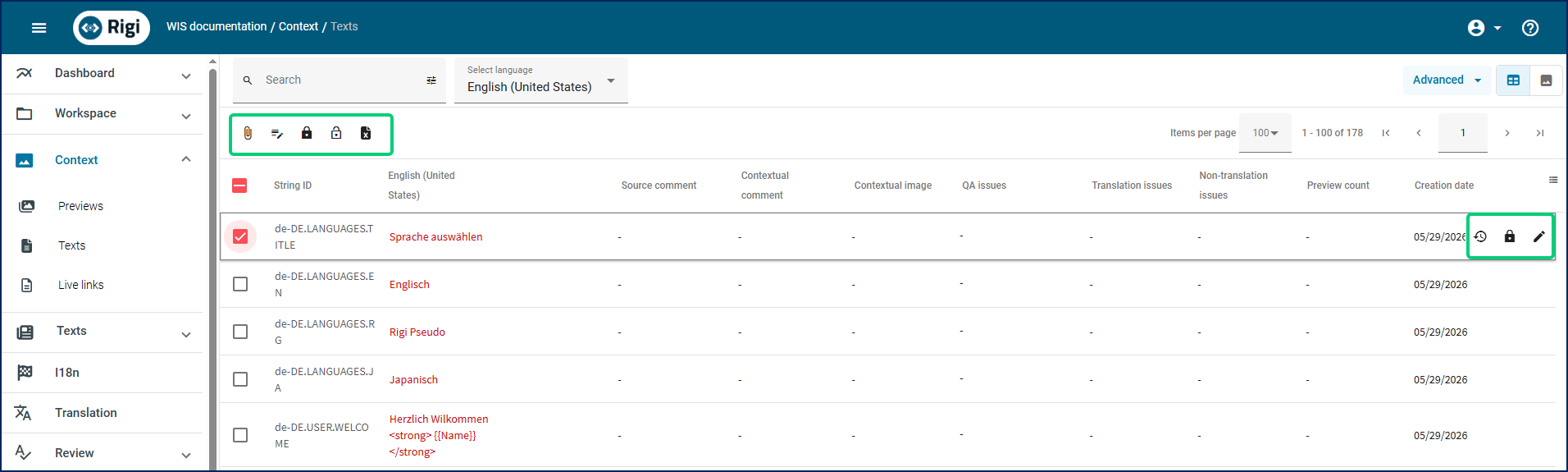
Here you can:
Display a string in the preview. Hover over a string and click the
 icon to display a preview in which the selected string will be highlighted.
View string history. Hover over a string and click the
 icon to display the History popup. For details, see the String history section.
(For source strings only) Lock and unlock strings. Hover over a string and click the
 icon to hide a string from translators and reviewers. Click the
  icon to unlock a string. For details, see the Lock strings (mark as non-translatable) section.
Locked strings will also not be affected when pseudo- or simulated target files are generated.
Add or edit contextual content for translators. Hover over a string and click the
 icon to display the Edit contextual content popup. In it, you can enter or edit a comment, or upload a contextual image. Translators will see the comment in a preview when they select the string.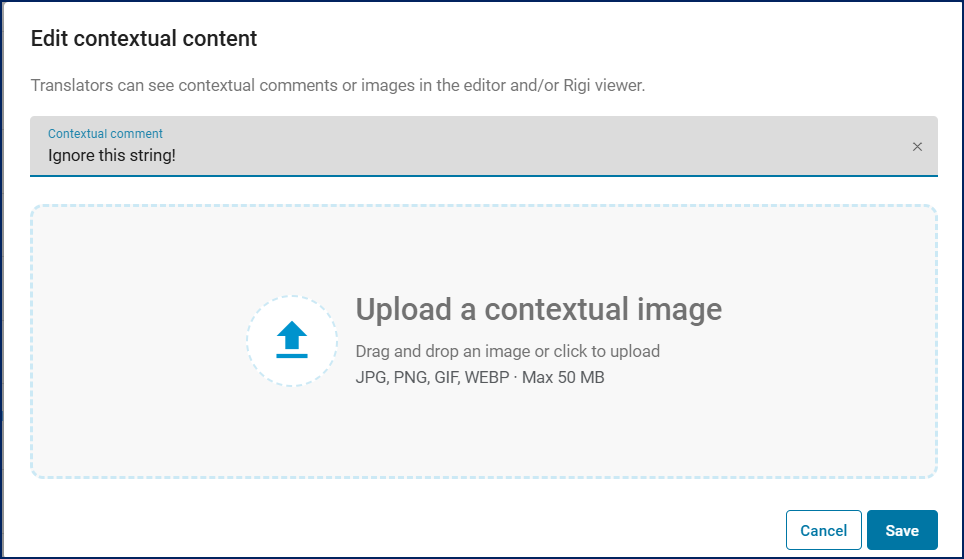
This option is useful if it is hard or even impossible to capture a preview. For more information, see the HTML previews-related questions and answers guide.
To add or edit comments for multiple strings, click the
 icon above the string list.
To add or edit contextual images for multiple strings, click the
 icon above the string list.
Export selected strings into an XLSX file. Select the required strings, then click the
 icon above the string list.
Export and import source strings with contextual comments to edit string state and contextual comments outside Rigi.
To export strings with their locked state and contextual comments into an XML file, click the Advanced button in the top right-hand corner, then select Export metadata. A ZIP file containing an XML file is downloaded. In the XML file, you can lock or unlock strings and edit contextual comments.
Hidden strings are not exported.
To import your changes, click the Advanced button in the top right-hand corner, then select Import metadata and upload the edited XML file or a ZIP file containing it. Only the locked state and contextual comments are updated; any other changes in the file are ignored.
Important
Only a single XML file containing strings in the same language can be imported using the Import metadata option.