Logging in to XTM Connect – Kontent.ai application embedded in CMS
As an end-user, you can connect to XTM Connect – Kontent.ai UI embedded in CMS (iframe) by logging into Kontent.ai and selecting content item from a project as needed.
Note
Your administrator must first define the Custom element embedded iframe for the particular content model.
Log in to Kontent.ai using your Kontent.ai credentials:
Email
Password
and click the Continue button.

Logging in to Kontent.ai to connect to XTM Connect – Kontent.ai UI embedded in CMS (iframe)
From Projects listing dropdown select the content item you wish to send for translation.
Note
When you log in to the connector using the iframe, you do not have to select your project, as you are already in your project.
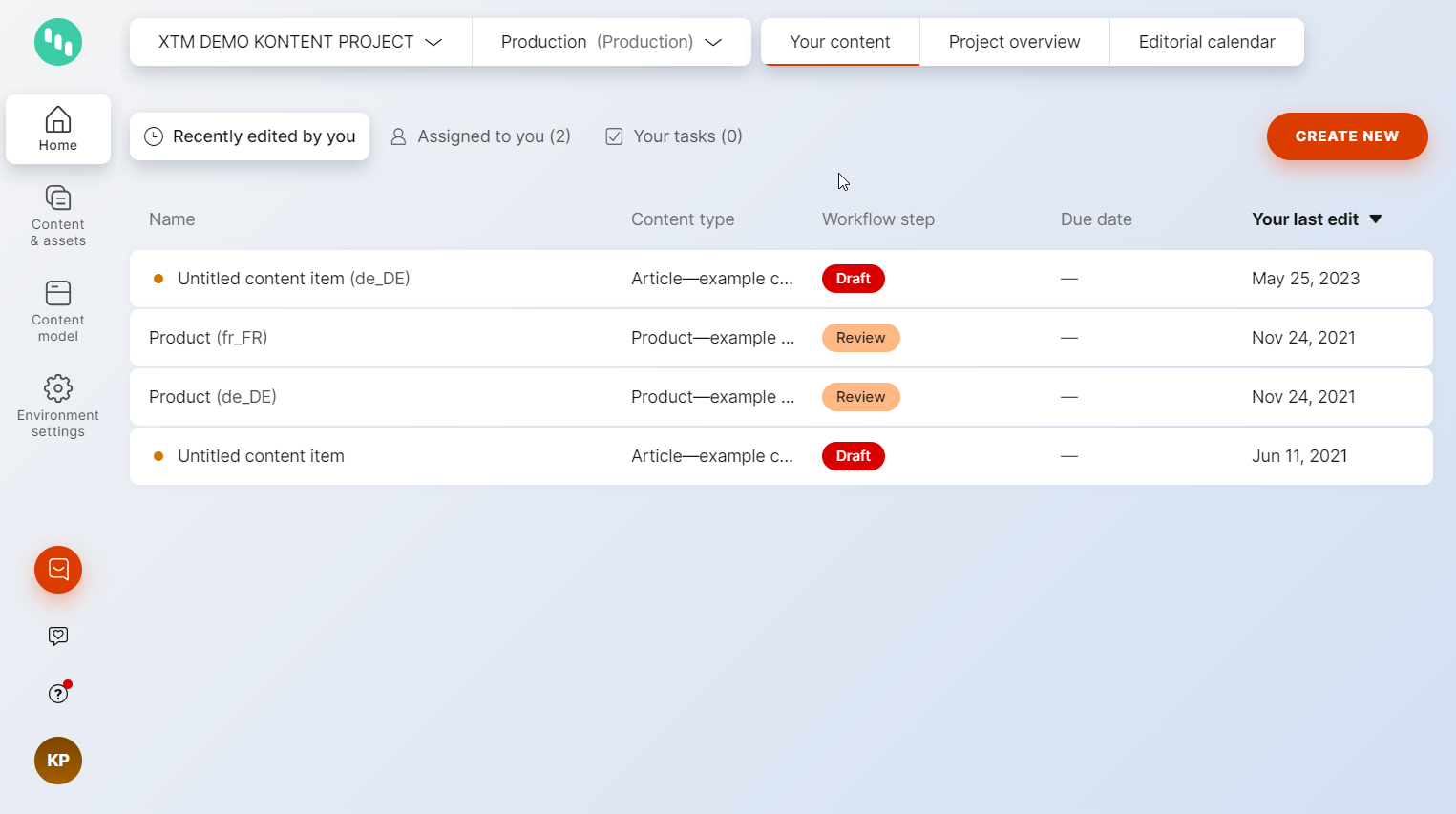
Selecting content item from a project
Scroll down to reach the XTM Connect Custom element embedded iframe and log in to XTM Connect – Kontent.ai embedded iframe using your XTM Connect – Kontent.ai credentials:
Client name
User email
Password
and click the Log in button
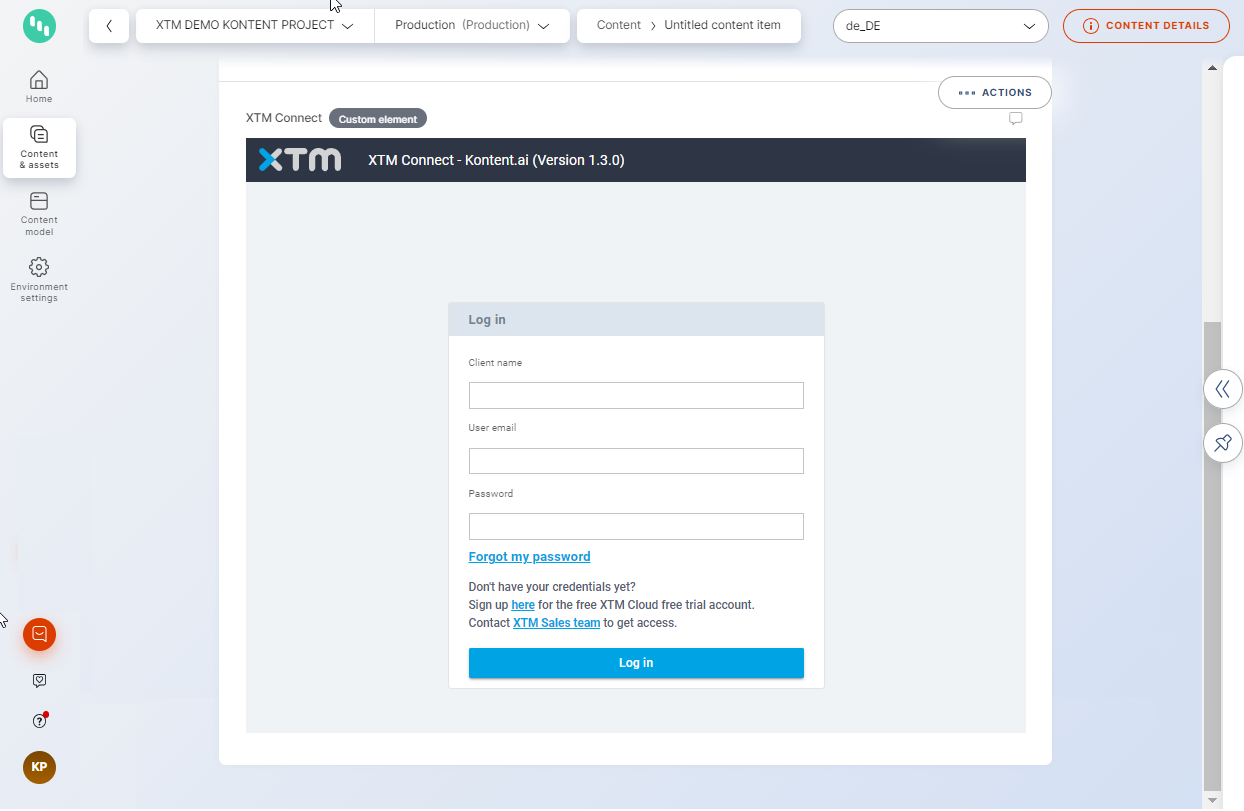
Logging in to XTM Connect – Kontent.ai embedded iframe
You are now logged in to XTM Connect – Kontent.ai embedded iframe
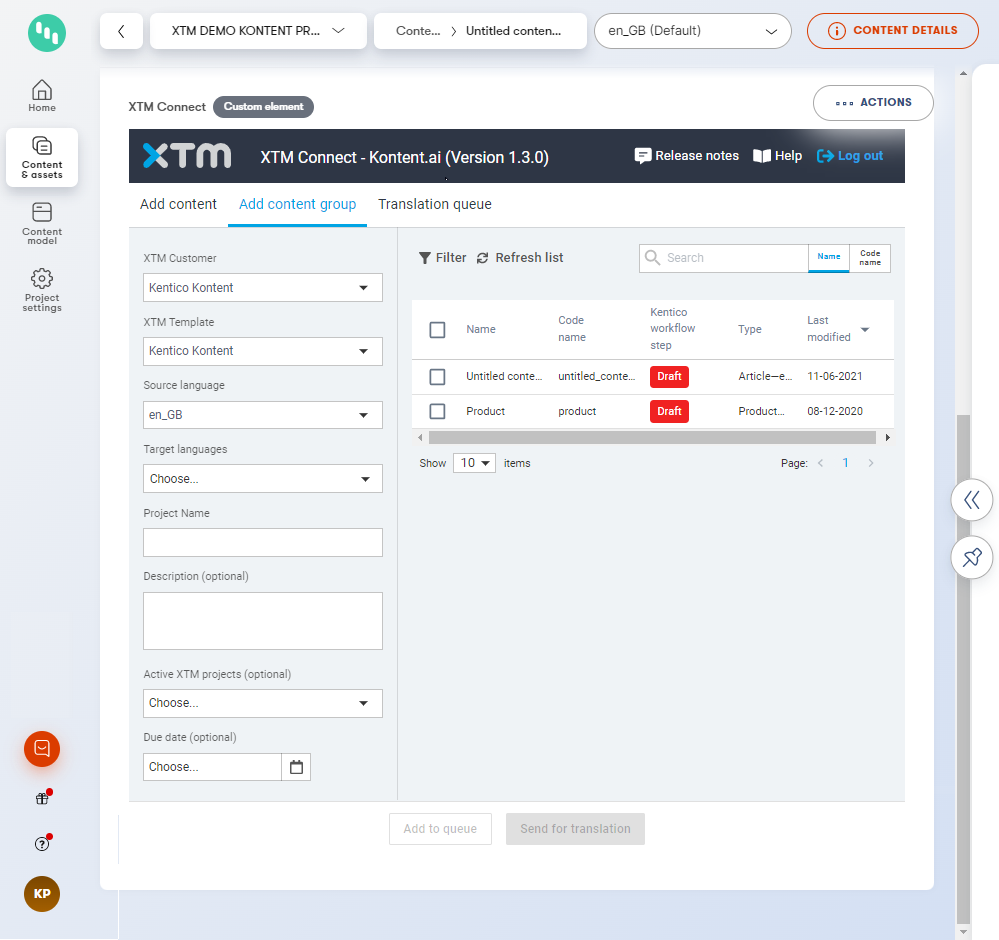
Kontent.ai XTM Connect – embedded in CMS (iframe)